
Step 1: Create a campaign
Use this campaign to display add-on products in a popup when customers click the checkout button.
To get started:
-
Click "Cart add-ons (Pop up)” option.
-
Then click on Create campaign button.

- Provide a campaign name. This will not be visible on the storefront.

Step 2: Trigger product types
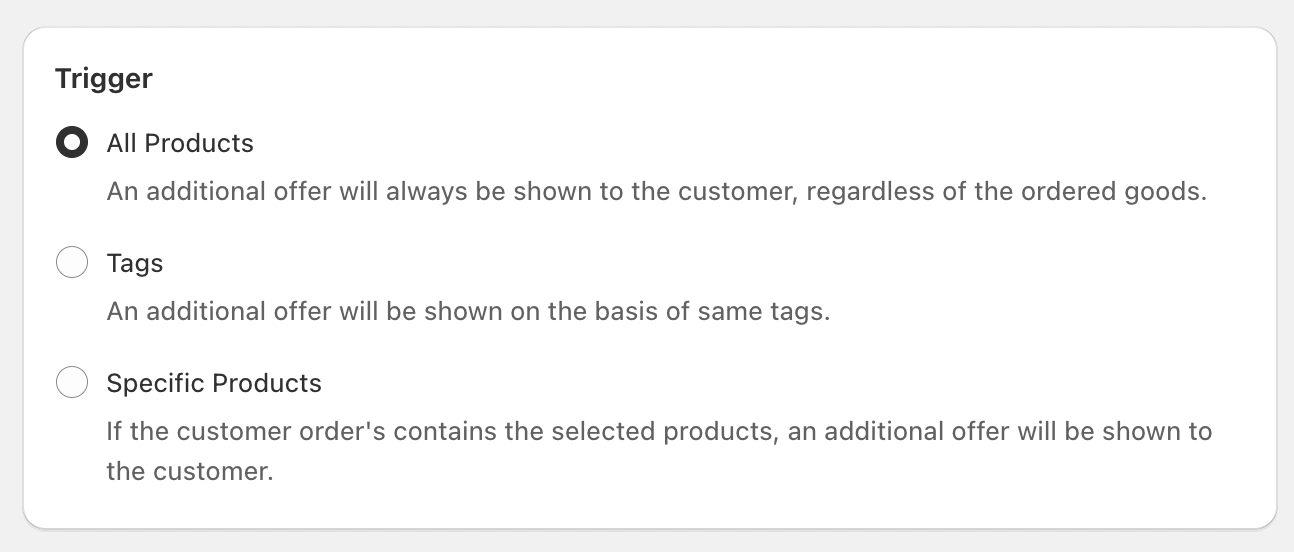
Next, choose the trigger type that will determine when your campaign appears on the cart page. The trigger specifies which products will activate the campaign display.
-
All Products – The campaign will appear on the cart page for every product added to the cart.
-
Specific Products – Select particular products that should trigger the campaign when they’re in the cart.
-
Specific Tags – Enter product tags, and the campaign will be displayed for any product carrying those tags.
Step 3: Offer products
Select the specific products you want to display in the campaign.

Step 4: Other optional settings
Provide a campaign title and subtitle for custom text. Otherwise, default text from the widget settings will apply.
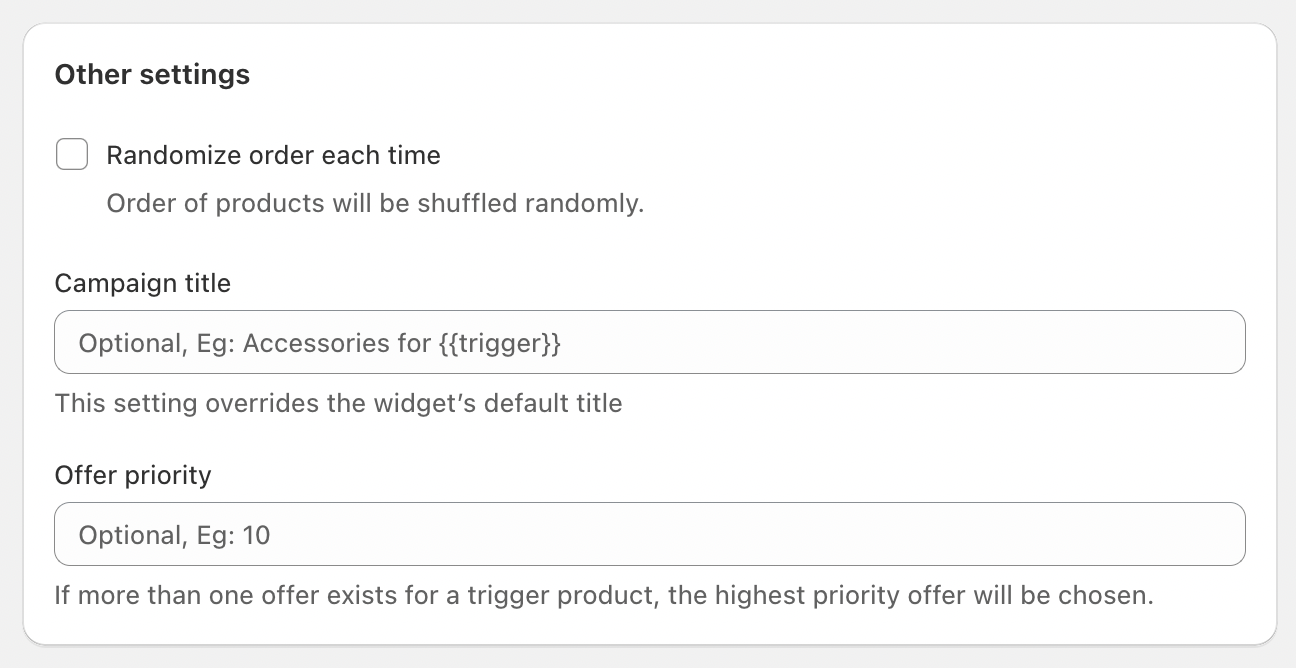
Campaign priority
If a trigger product has multiple add-on campaigns, you can set a priority value to decide which campaign is shown. A higher number means a higher priority.
Example
- Campaign 1: Applies to all Hoodies with the tag "Hoodies" (Priority: 1).
- Campaign 2: Applies to the specific “ShadowWear Apex Dual-Tone Hoodie” that also has the "Hoodies" tag but has a different set of offer products (Priority: 2).
In this case, if a customer adds the “ShadowWear Apex Dual-Tone Hoodie” product, Campaign 2 will be shown because it has the highest priority. If they add any other Hoodies, Campaign 1 will be displayed.
Randomise the order of offer products
The order of the offer products will be displayed by default in the order which was added in the app. Enable this to change the order of the products each time.
The offer will appear automatically whenever a visitor clicks the checkout button, whether from the cart drawer, cart page, or any other location.
If you run into any issues, please refer to our troubleshooting guide or reach out to support for further help.