
Step 1: Create a Campaign
Use this campaign to display offer products on the Thank You page in a list format.
To get started:
-
Select Thank You Page Add-ons.
-
Click the Create Campaign button.

- Enter a campaign name — this is for internal use only and will not be visible on the storefront.

Step 2: Trigger product types
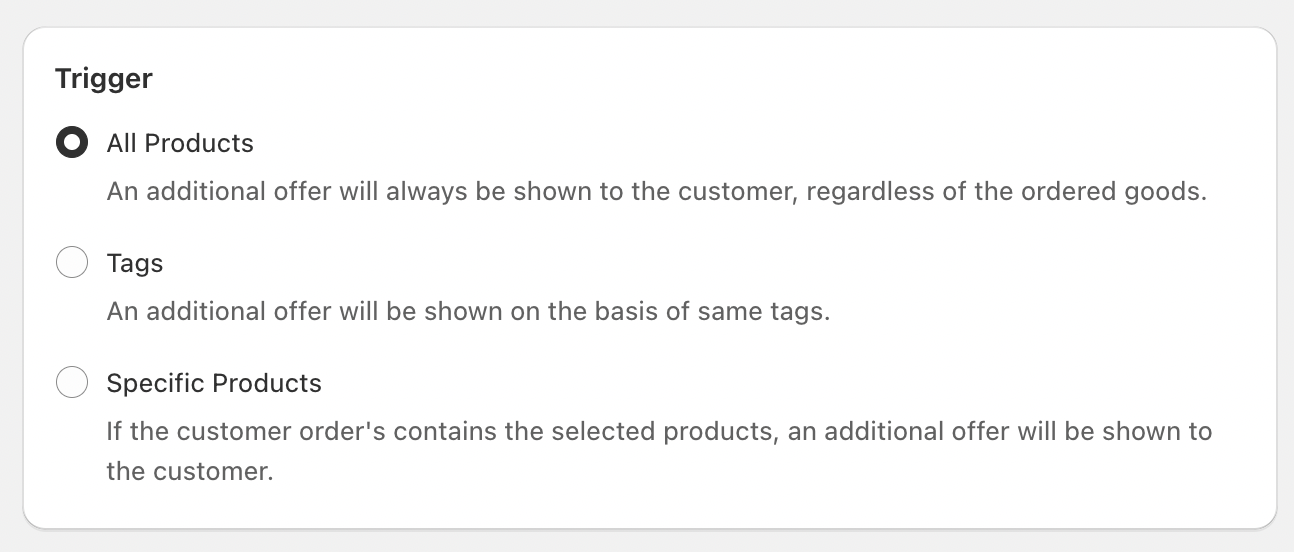
Select a trigger type to decide where your campaign will appear. The trigger determines on which product pages the campaign will be displayed.
-
All Products – The campaign will appear on every product page in your store.
-
Specific Products – Select particular products where you want the campaign to show.
-
Specific Tags – Add product tags, and the campaign will appear on all product pages with those tags.
Step 3: Offer products
Choose the offer product type and select specific products to display as offers in the campaign.

Step 4: Other optional settings
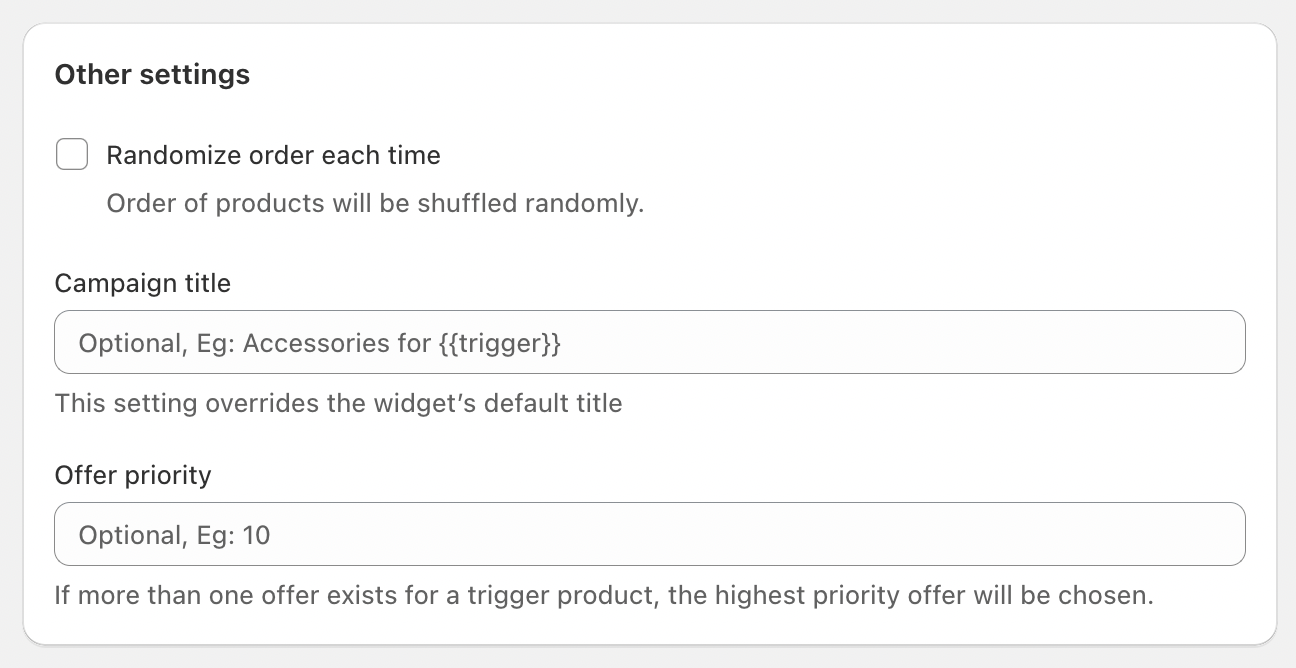
Provide a campaign title and subtitle for custom text. Otherwise, default text from the widget settings will apply.
Campaign Priority
If a trigger product is linked to multiple add-on campaigns, you can assign a priority value to control which campaign is shown. A higher number indicates a higher priority.
Example:
-
Campaign 1: Applies to all hoodies with the tag “Hoodies” (Priority: 1)
-
Campaign 2: Applies to the specific product “VelocityX Monochrome Hoodie”, which also has the “Hoodies” tag but a different set of offer products (Priority: 2)
In this case, when a customer purchases the VelocityX Monochrome Hoodie, Campaign 2 will be displayed because it has the higher priority. For any other hoodie, Campaign 1 will be shown.
Randomize Offer Product Order
By default, offer products are displayed in the same order they were added in the app. Enable this option to shuffle the order of products each time the campaign is displayed.
Step 5: Adding the app block to the theme
After you create and save your Thank you page upsell campaign in the BoostUp app, you need to add the widget to your template manually.
-
From your Shopify Admin, navigate to Online Store > Themes.
-
Find your active theme and click the Edit theme button.
-
At the top of the screen, use the dropdown menu to open the Checkout and customer accounts template.

4. And then click on "Thank you".

5. In the left sidebar, under the "Product information" section, click + Add block.
6. Look for the "Apps" section and select the TY page upsell block.
7. Use the drag handles to move the block to your preferred location. We recommend placing it below the 'order summary items'.
8. Click the Save button in the top right corner.
Now, you can visit a thank you page to see the widget.
The offer will appear automatically whenever a visitor the thank you page after completing the order.
If you run into any issues, please refer to our troubleshooting guide or reach out to support for further help.