Problem : Widget is not seen when the “Checkout” button is clicked
If your widget isn’t appearing on the product page, it could be due to several reasons. Please check the following:
-
Confirm that the offer products are active and currently in stock.
-
Make sure the BoostUp app embed is turned on in your theme. You can enable this through your theme customizer in the theme editor.

3. The widget visibility rule
The widget will remain hidden if the cart contains only the offer products and does not include the main (trigger) product.
4. When the app cannot detect the Checkout button
In some cases, the app may fail to identify the Checkout button due to conflicts with your store’s theme or other third-party apps.
If this happens, you can fix it by manually adding the Checkout button’s HTML/CSS selector in your app settings.
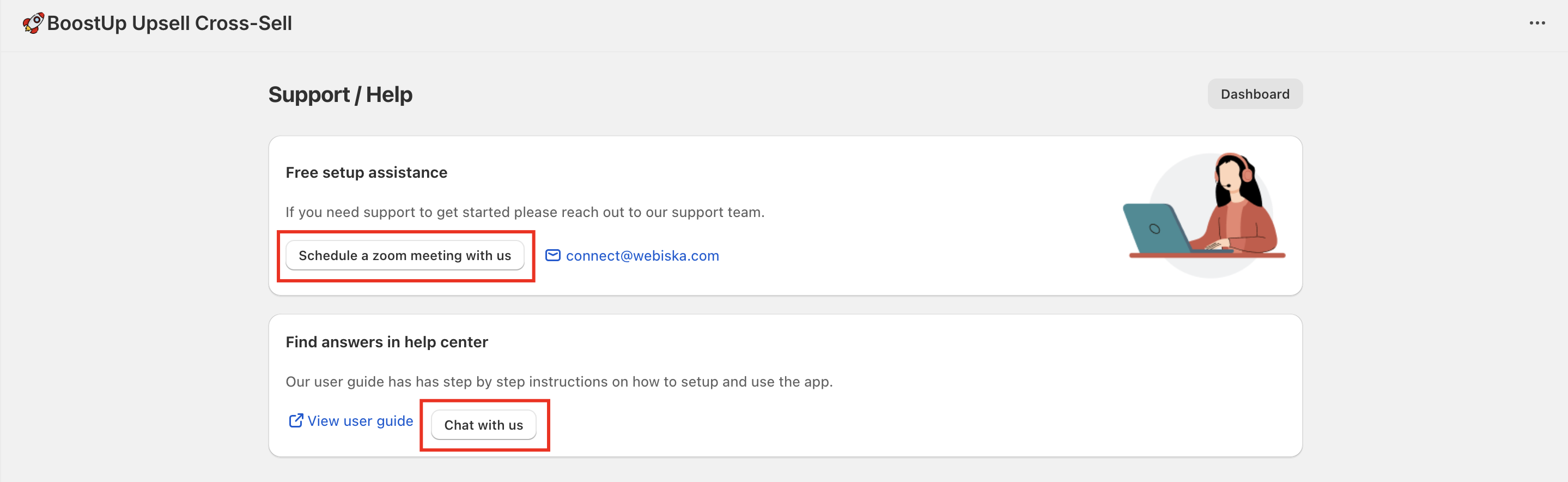
Locating the correct selector and updating it in the admin panel can be a bit technical. Our support team is always available to help you with the setup at no additional cost.
However, if you’d like to handle it yourself, follow the steps below.
How to Check and Set Up the Checkout Button Selector
-
Open your store’s Cart Page, then right-click anywhere on the page.
-
Select Inspect from the menu.
-
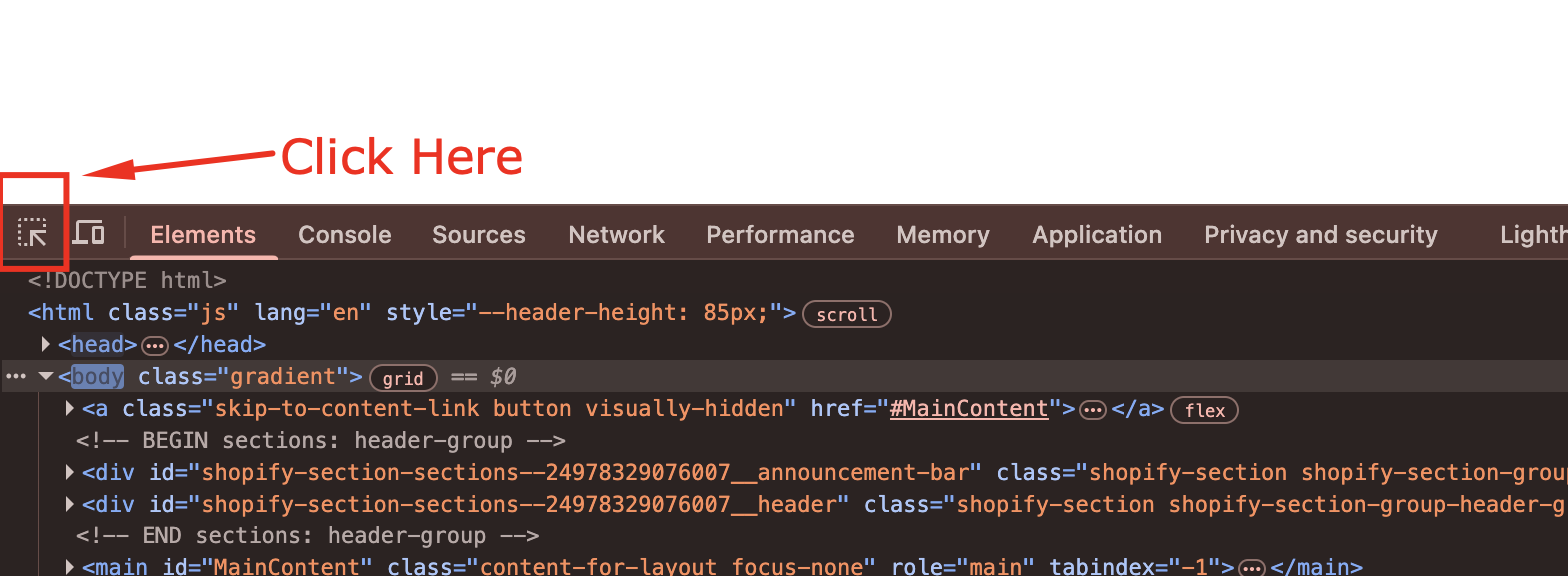
In the inspection panel, click on the cursor (inspector) icon, then click directly on your Checkout button.
-
A section of code will now be highlighted in the console.
-
If the attribute name="checkout" or the id checkout is missing, copy the class name from the highlighted element instead.
-
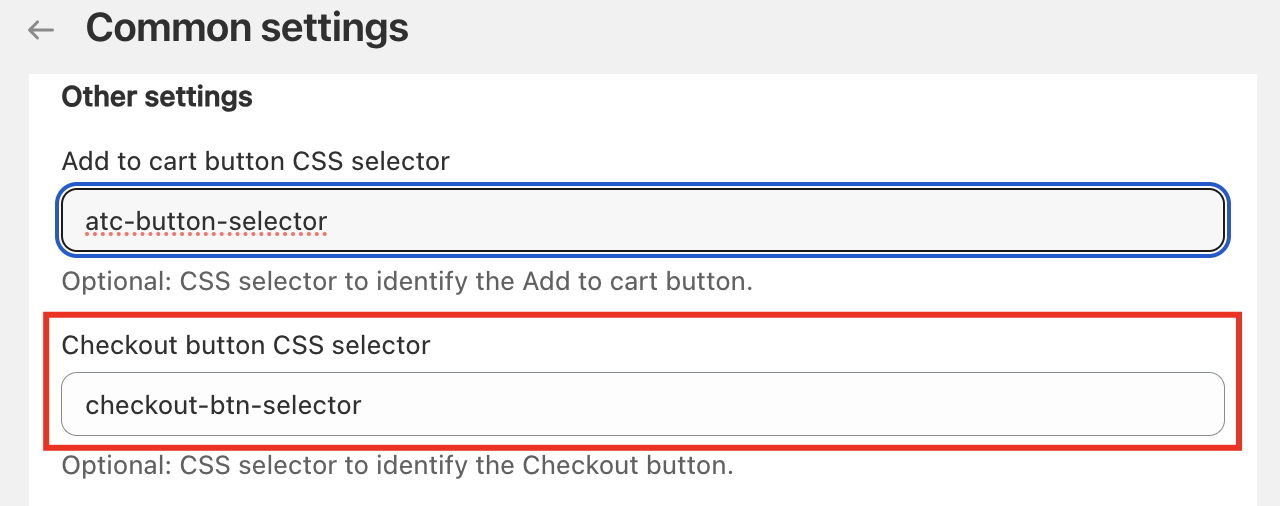
Go to your app’s Admin Panel and click on Customize.
-
Under Common Settings and Customizations, select Edit Settings.
-
Scroll to the Other Settings section and paste the copied class name into the Checkout button selector field.
-
Save your changes and refresh your storefront.
Once done, the widget should appear whenever the Checkout button is clicked.
If you’re still experiencing issues, feel free to reach out to our support team — we’ll be happy to assist you with the setup free of charge.