If your widget isn’t appearing on the product page, it could be due to several reasons. Please check the following:
-
Confirm that the offer products are active and currently in stock.
-
Make sure the BoostUp Upsell app embed is turned on in your theme. You can enable this through your theme customizer in the theme editor.

3. The “FBT List” app block is added in your theme. (2.0 theme).

4. For older themes that don’t support app blocks, you’ll need to manually adjust the placement.
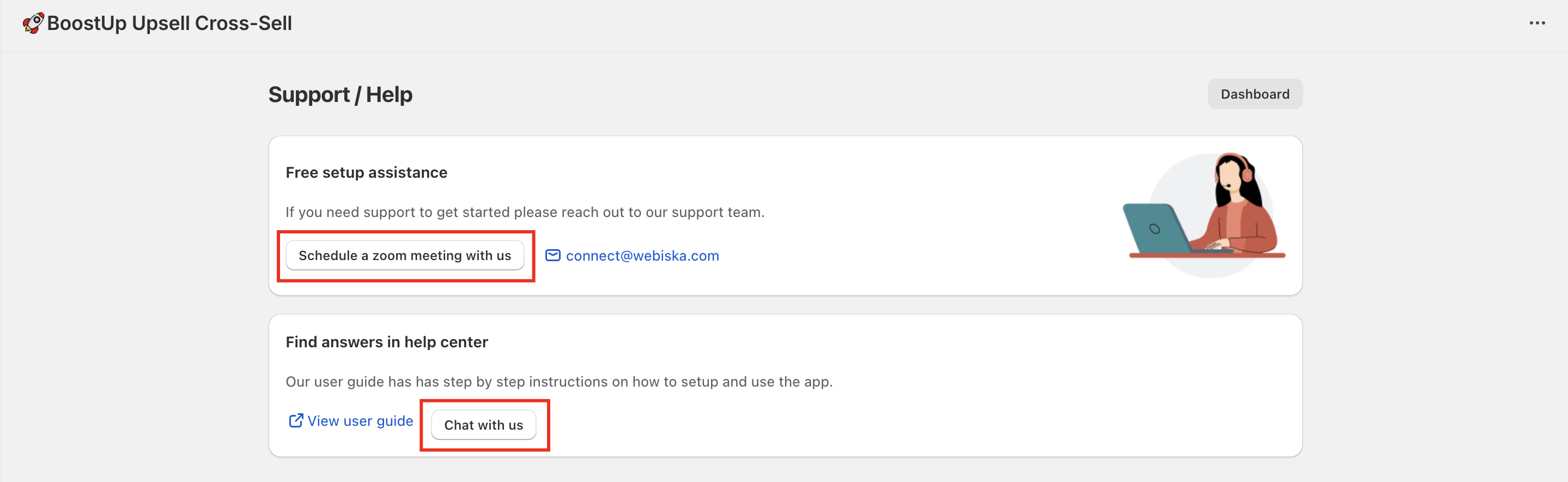
5. If you continue to experience problems, reach out to our support team for complimentary setup help via chat, or book a Zoom session.
Problem: How to Customize the Widget’s Look and Style?
Solution:
To update the look of your widget, follow these steps:
-
Navigate to the “Settings” section in the app.
-
Find the “Frequently Bought Together (List)” widget and click on “Edit widget.”
-
Expand the various settings within the accordions to access more customization options and tweak the widget to your liking.

5. Click Save settings and exit the editor.
6. Go to your store to verify that the changes have been applied.
Custom Css
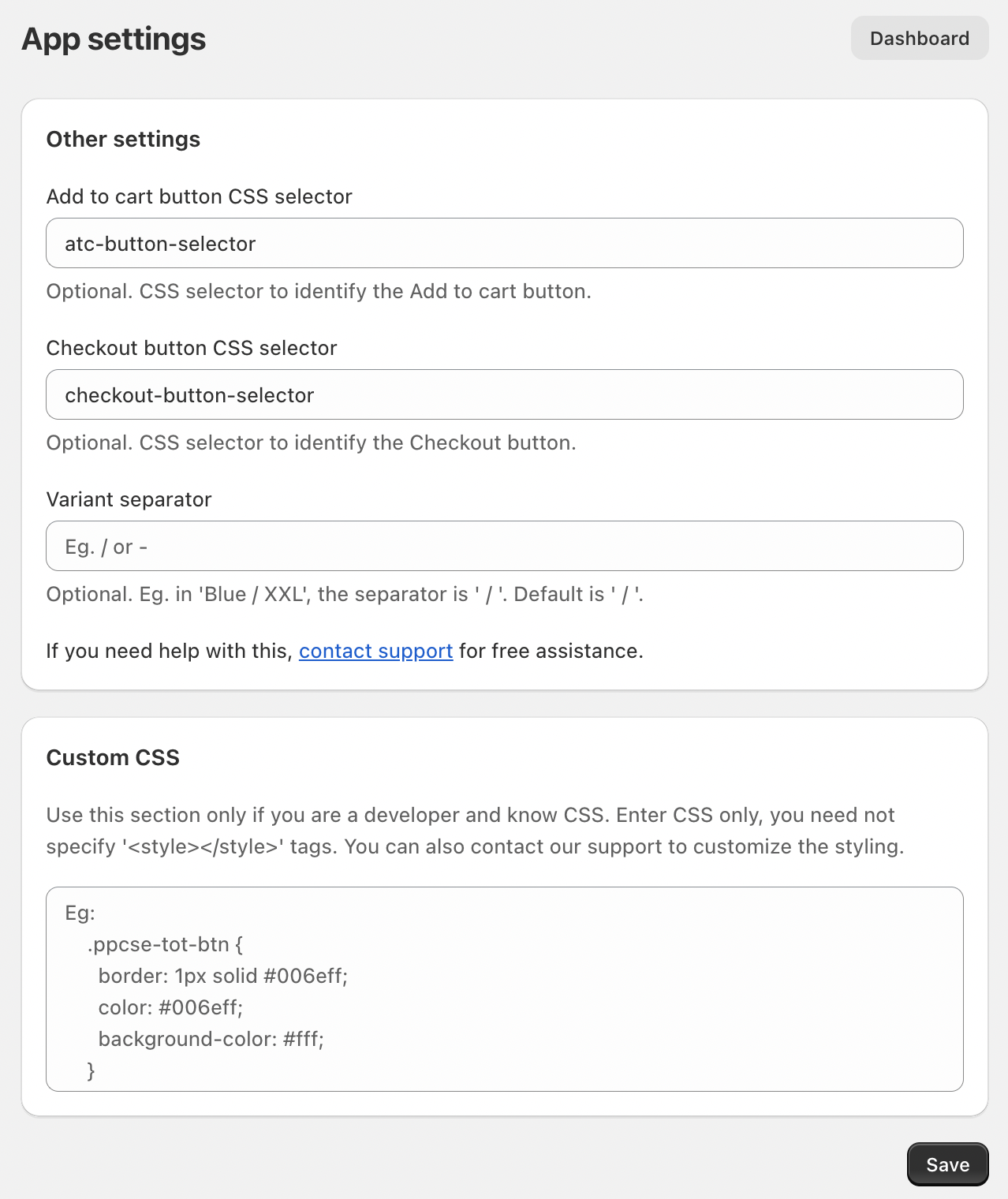
If the required field isn’t available by default, you can still make the changes using custom CSS. To do this, go to the Customizer and at the top, select Common Settings and Customizations, then click on Edit Settings.

Add to cart button CSS selector
-
Identifies the button on your store that adds a product to the cart.
-
Helps the app detect when customers click the Add to Cart button.
-
Required for triggering upsells, bundles, or tracking add-to-cart actions.
Checkout button CSS selector
-
Identifies the checkout button in the cart or drawer.
-
Allows the app to perform actions when a customer proceeds to checkout.
-
Useful for showing last-minute upsells or tracking checkout conversions.
Variant separator
-
Defines the symbol used to separate variant options like color and size.
-
Example: in "Blue / XL", the separator is "/".
-
Helps the app correctly read and display variant details.
Custom CSS
-
Lets you apply custom styling to match the app’s appearance with your store’s theme.
-
Only for users familiar with CSS.
-
You can adjust button colors, borders, fonts, and layouts without editing theme files.
If you find this challenging, you can contact our customer support via chat or zoom for free setup assistance.